
Publish and go live
Get templates and content from your machine to a live domain, and know which action moves what.
Going live is two independent movements plus a domain. Confusing them is the most common reason a change "did not deploy".
What moves what
| You changed | You run |
|---|---|
| Template, partial, CSS, JS, favicon | quilium push |
| Page, content block | Publish the page |
| Collection item | Nothing. It is already live |
| A route, a type, a setting | Nothing. Structure applies immediately, but it only shows through a published page and a pushed template. |
1. Push the theme
quilium push
It archives templates and assets, validates them, updates the translation dictionary, and warns on a dirty or out-of-sync git tree. It refuses to push when public/ is empty. Partial pushes are possible with --files <glob>, and --yes skips the prompts for CI.
It archives your working tree, which is why the dirty-tree warning is worth heeding: undoing a template change is git checkout followed by another push, so the state you can go back to is the state you committed.
2. Know what has a draft and what does not
This is the distinction that surprises everyone once, and it is worth learning before rather than after.
| Object | Draft state | What happens when you save |
|---|---|---|
| A page and its content blocks | yes | Visitors keep seeing the previous published revision until you publish |
| A collection entry | no | It is live immediately, on every page whose query matches it |
So a page can be built, filled and reviewed in peace, while adding an entry to a collection is a publishing act. Nothing warns you, because from the platform's point of view you simply created a record.
To stage collection entries, add the state yourself: a checkbox field on the type, a condition on every listing query, and nothing on the detail query.
        published:
          type: checkbox
          label: Publié
          translatable: false
          config:
            checkedValue: oui
            uncheckedValue: non
            where:
              '&=':
                published: oui
Unpublished entries then disappear from the lists while staying reachable by URL, which is what makes the collection's preview link work for editors. That reachability is the point, and it is also the limit: the detail page must therefore declare itself noindex, driven by the entry rather than by the page. The full pattern — the backfill that is not optional, the six listing queries on one collection, and the two-line robots override — is in Build a blog, section 9.
default: only applies to rows created afterwards.3. Publish the pages
Publishing creates a live revision. An unpublished page keeps serving its previous revision, or 404s if it never had one.
It is one button, top right of the page editor, sitting next to Edit and Preview — and it acts on the page you are looking at, one at a time. The header beside it names what you are about to publish: the page, and under it the path it will answer on, locale included.
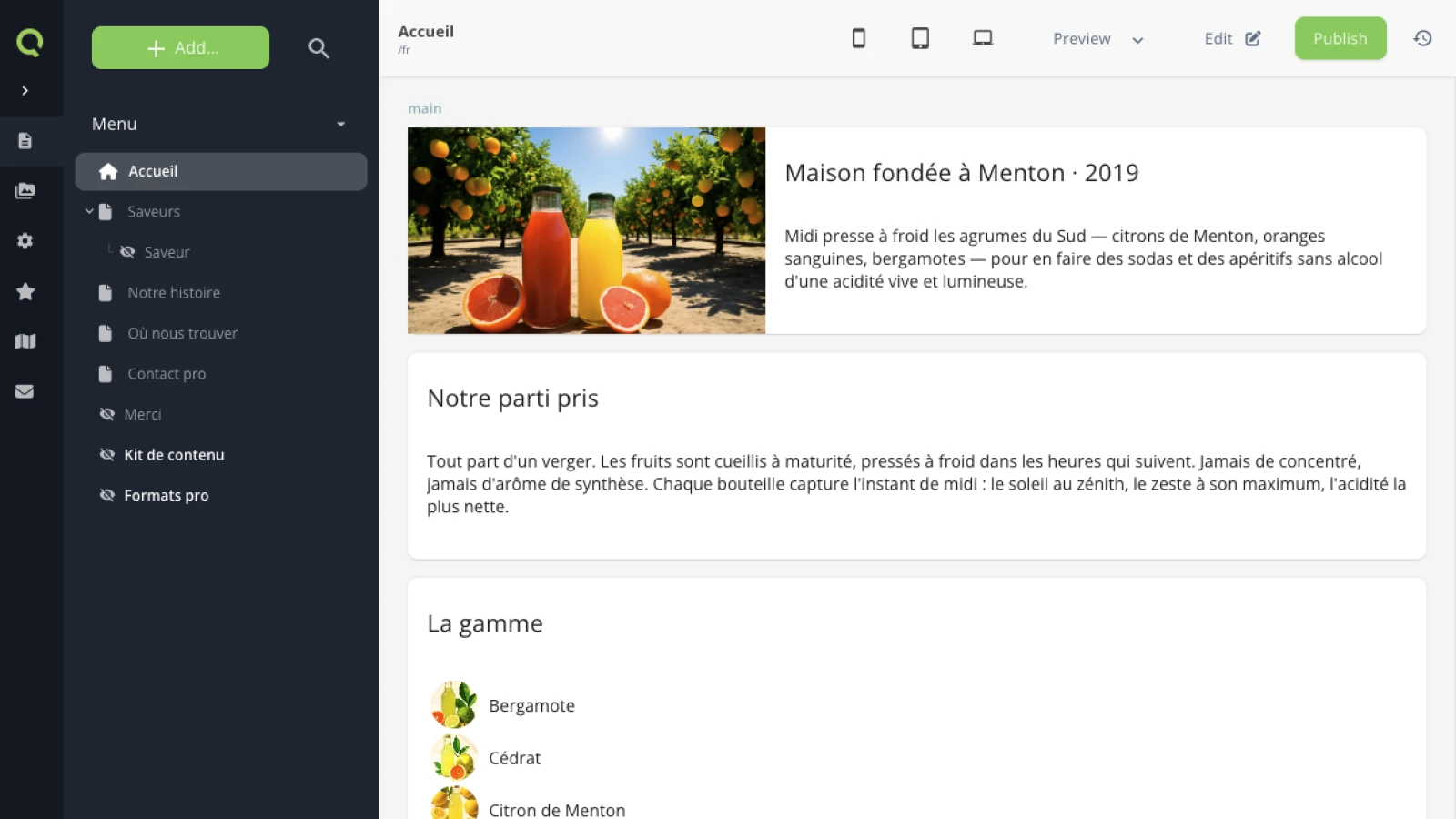
Two things in the left-hand tree are worth reading while you are there, because they are the states this guide keeps talking about:
- A crossed-out eye marks a hidden page —
visible: false, active and routable, simply absent from the menus. Here that is Merci, Kit de contenu and Formats pro. - A hidden page nested under its listing is a collection's detail page. Saveur, indented under Saveurs, is the single page that serves every flavour in the collection. One page, one URL pattern, every entry. See Build a blog, section 4.
Two shortcuts the editor does not show you, because neither lives in it. Right-clicking a page in the tree offers Publish without opening it. And the tree's own dropdown — the caret next to the menu's name, not the page — carries Publish all, which is what you reach for after building several pages in one sitting.
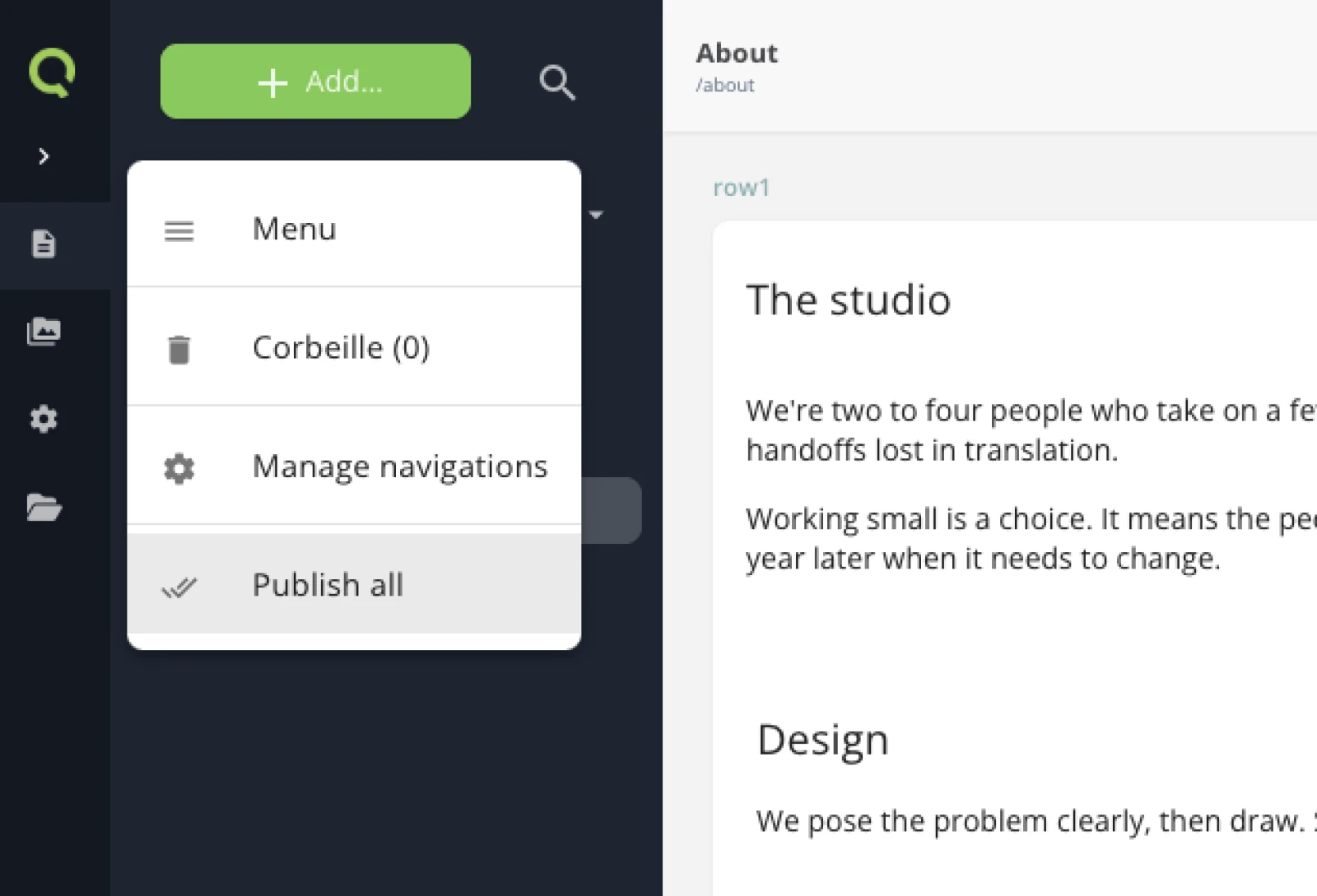
Publishing everything at once is a convenience, not a different operation: each page still gets its own live revision. It is also the moment the warning below stops being theoretical — publish all means the pages you had not finished thinking about, too.
state: active means routable, not online. An inactive page 404s everywhere, including on your machine. Never deactivate a page to "hide it while working".publish-page — which is precisely why the rule needs stating: publishing is what makes a page visible to the world, and an agent has no way to know whether the copy was signed off, whether the photographer was paid, or whether today is the day. The rule the skill library gives agents is the same one, in one line: nothing publishes itself.And there is nothing to delegate before it either, because the agent cannot see the ground truth.
get-navigations-with-pages nor get-page-with-content returns anything about publishing. A page comes back with state, visible and an updated_at — there is no published-at, no revision number, no "live version differs from draft" flag. So "list the pages waiting to be published" has no answer, and an agent asked for one will produce a plausible list built from state, which is a different thing entirely. Read the tree in the back-office instead: publish page by page, or use Publish all.4. Point the domain at the site
Domains live in the site's own Domains screen, next to Overview and Collaborators. Add the hostname there, and the panel tells you what to create at your registrar and where the check currently stands.
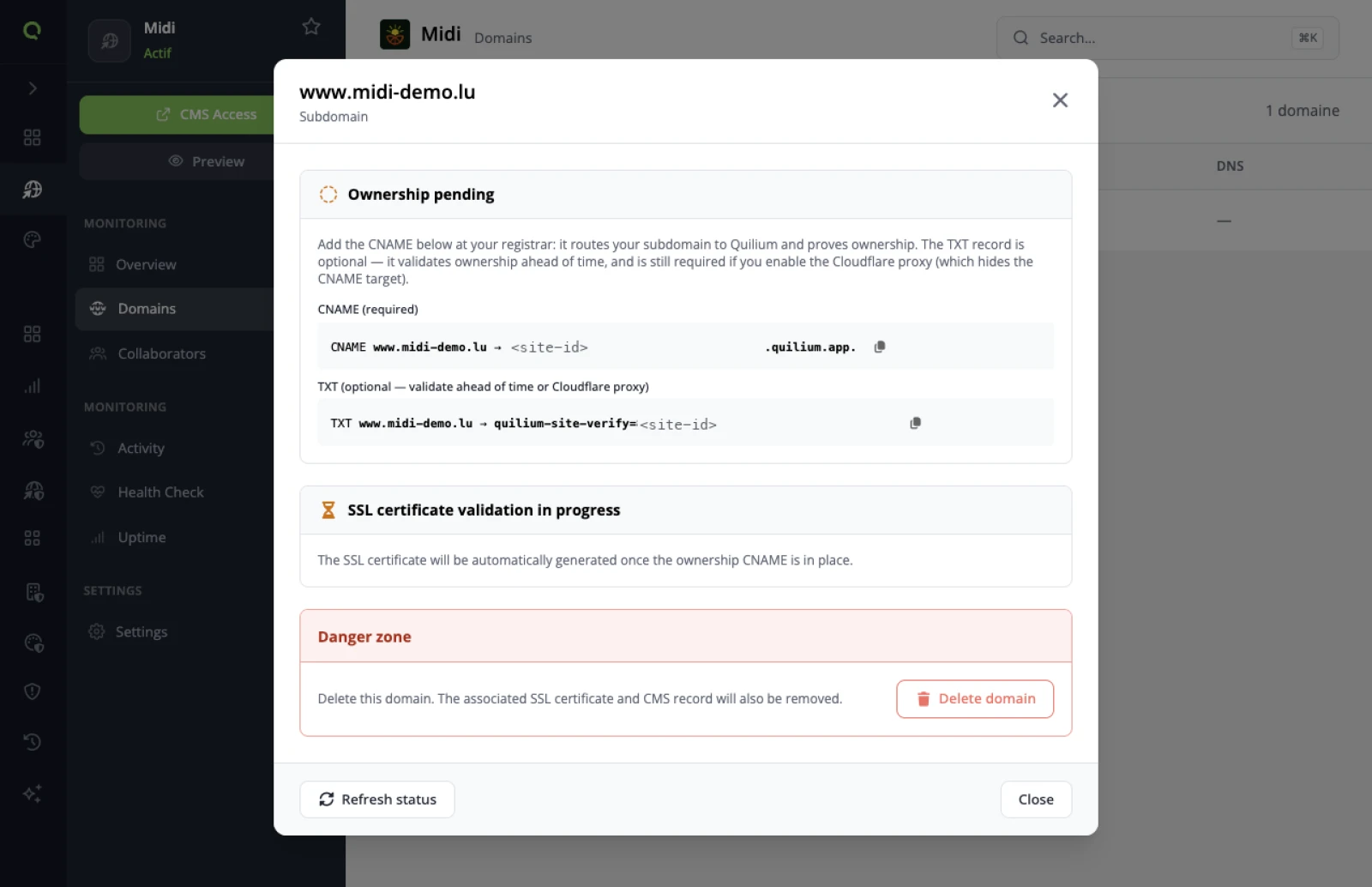
Every site already has an address, before any of this: <site-id>.quilium.app. That is the canonical origin — it is what serves your uploaded media, and it is what a custom domain is pointed at. Nothing replaces it; a domain is a second door onto the same site.
One record is mandatory, and it does two jobs at once.
CNAME www.example.com → <site-id>.quilium.app.
It routes the subdomain to Quilium and proves you own it. A second record is optional:
TXT www.example.com → quilium-site-verify=<site-id>
The TXT lets ownership validate ahead of time, before you flip traffic over. It stops being optional in one case: behind the Cloudflare proxy, it is required — the proxy hides the CNAME target, so the CNAME can no longer prove anything by itself.
The certificate is not your problem. It is generated automatically once the ownership CNAME is in place; there is nothing to buy, upload or renew. Until then the panel sits on SSL certificate validation in progress, and a Refresh status button re-runs the check rather than making you reload and hope.
The apex, which is a different animal
The panel above is labelled Subdomain, and that label is doing real work: a CNAME cannot sit at the apex in classic DNS, so example.com without the www. is handled by a second mechanism. Add it and the modal says Root domain (apex), with two differences that matter.
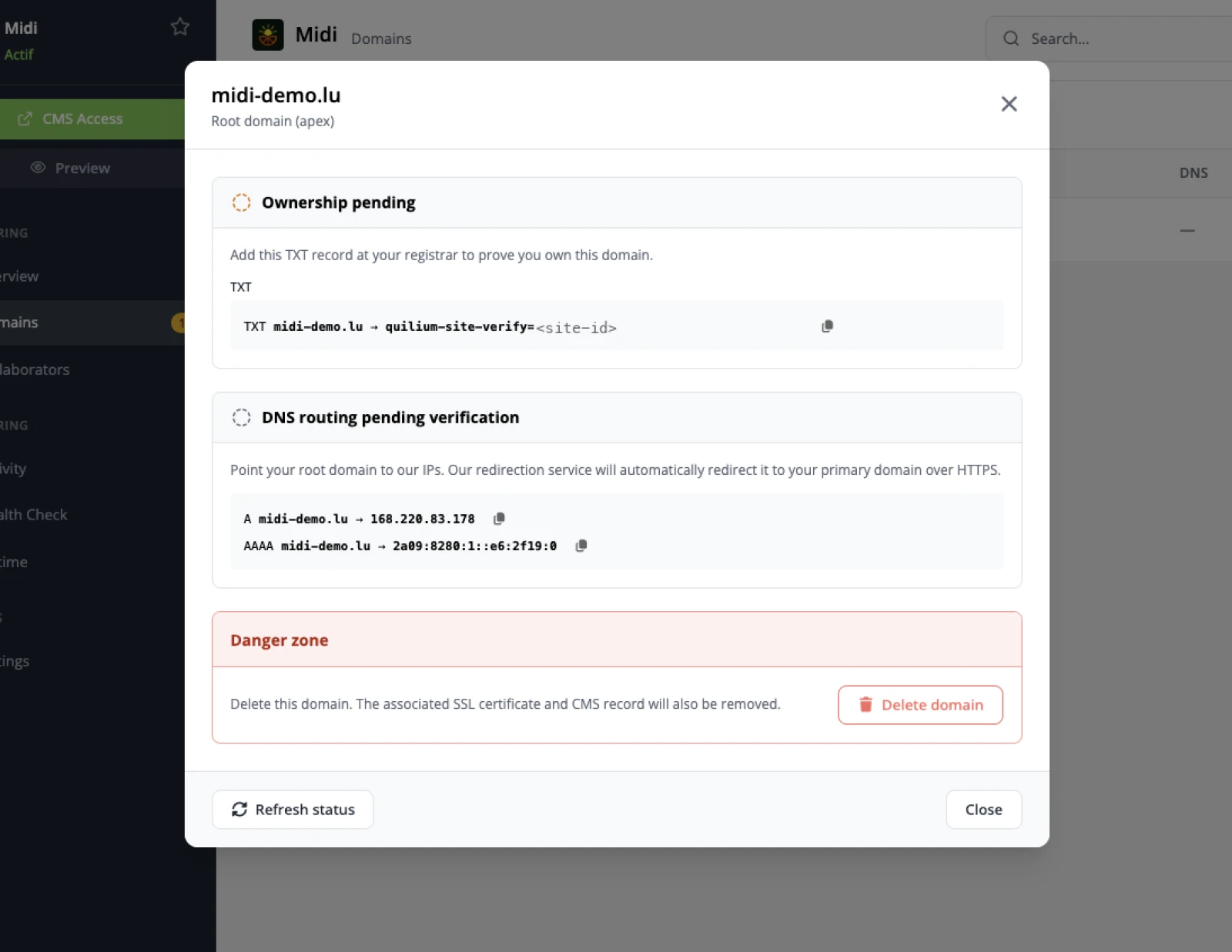
The TXT stops being optional. On a subdomain it was a convenience, because the CNAME already proved ownership. At the apex there is no CNAME, so the TXT is the proof — it is the only ownership record on the panel.
And the apex does not serve the site: it redirects to it. You point the root at two fixed addresses, one A and one AAAA, and Quilium's redirection service sends it on to your primary domain over HTTPS.
A      example.com   →   <the IPv4 the panel shows>
AAAA   example.com   →   <the IPv6 the panel shows>
Take both from the panel rather than from here — they are infrastructure, and infrastructure moves. The consequence for your site is the part worth deciding on purpose: the apex is a doormat, the www. is the address. Visitors typing the bare domain land on the primary one, which is where your canonical URLs, your hreflang and your analytics all already point.
How long any of it takes
Minutes, in two independent instalments, and neither is under Quilium's control:
- The certificate takes several minutes to be issued once the ownership record is in place. Nothing to do but wait — and the Refresh status button re-runs the check rather than making you reload.
- DNS propagation depends on your TTL, and is likewise a matter of minutes rather than seconds. If you lowered the TTL before the change, it is short; if you did not, it is whatever the old record said.
Which makes the practical rule: do the DNS work before you need the domain live, not on the morning of the launch. Neither wait is long, but they are sequential — propagation, then ownership check, then issuance — and none of them speeds up because you are watching.
5. Control who sees the draft
The live site is always public; the draft is reserved to the members of the site. To have a client review it before launch, turn its public mode on — the Public draft checkbox under Settings › General, or quilium site public on — and off again once the review is done. whiteList in quilium.json (IPs allowed through without authenticating) travels with your push, so check it before shipping. The older "private": false key still makes the draft public while the switch is off, but it is deprecated: remove it and use the switch.
6. Verify like a visitor
Load the real domain, not localhost. Walk the navigation, open one detail page per route, and check that images return 200. A pushed template with a broken asset path looks fine locally, where the file exists.
Related
Last updated September 30, 2026.