
Add pages and publish
Turn the onepager into a small multipage site, wire the navigation, and put it online.
Your projects are a collection and each one has its own page. What is still missing is everything around it: a page that lists the work, a menu, and the difference between "it exists" and "it is online".
What you will have at the end
A Work page listing every project, a home page previewing three of them, an About page, a menu that builds itself from the navigation, and the site published.
1. Fill the Work page
You already created this page in the previous tutorial: it is the work page that the detail URLs hang off. It has no content yet, so /work renders an empty shell.
Open the page and add a Work block to it — the same content-type the home page uses. Give it its own eyebrow and title, for example "Selected work" and "Everything we have taken from idea to screen."
That is the whole step. The block carries the projectList query, so it reads the collection and renders the projects with no further wiring.
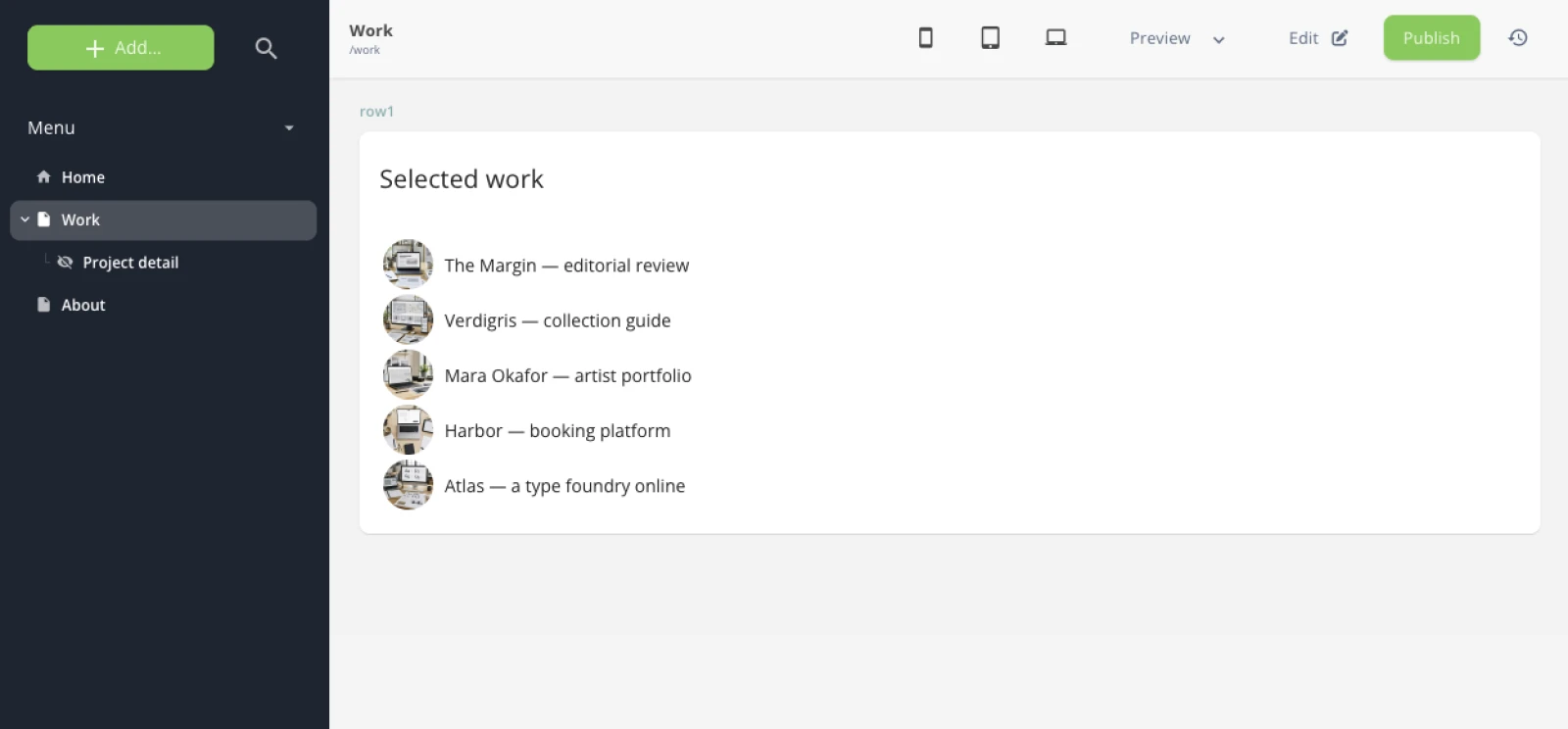
work block, each with its own title, both reading the same collection. This is the payoff of modelling by structure: a content-type is a shape, not a place.2. Turn the home list into a preview
Now that /work lists everything, the home page does not need to. It should show three and send people on.
The number of projects is currently a constant in the schema, which means both blocks are stuck with it. Make it an editor decision instead: add a number field, and have the query read it.
limit:
  type: number
  label: How many projects
  info: 3 on the home page as a preview, 100 on the Work page.
  default: 8
projectList:
  type: query
  label: Projects
  config:
    itemSet: project
    limit: '{{field.limit}}'
    sort:
      - _order: asc
{{field.<name>}} is the value of another field of the same block — what the editor typed next to it. Set limit to 3 on the home block and 100 on the Work block, and the same content-type, with the same template, renders two different lists.
Then give the preview a way onward. Add a label field, so the link only appears where an editor asks for it:
ctaLabel:
  type: text
  label: Link to the Work page
  info: Fill it on a preview block to link to the full list. Leave empty on the Work page itself.
{% if c.ctaLabel != blank %}
<a href="{{ 'work' | url }}">{{ c.ctaLabel }}</a>
{% endif %}
That url filter needs a named route to a fixed page — the kind with no parameter at all. Create it in the backoffice, pointing at the Work page, and leave the path empty: a fixed page has no variable part.
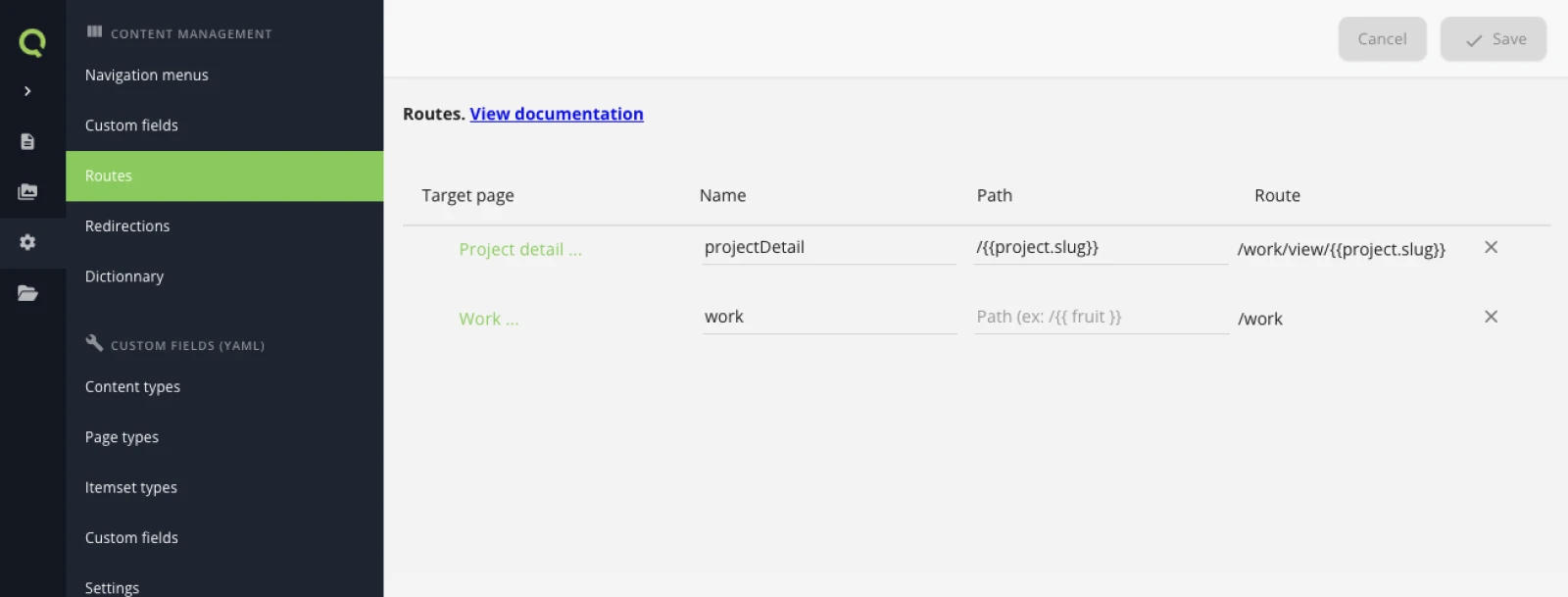
3. Add an About page
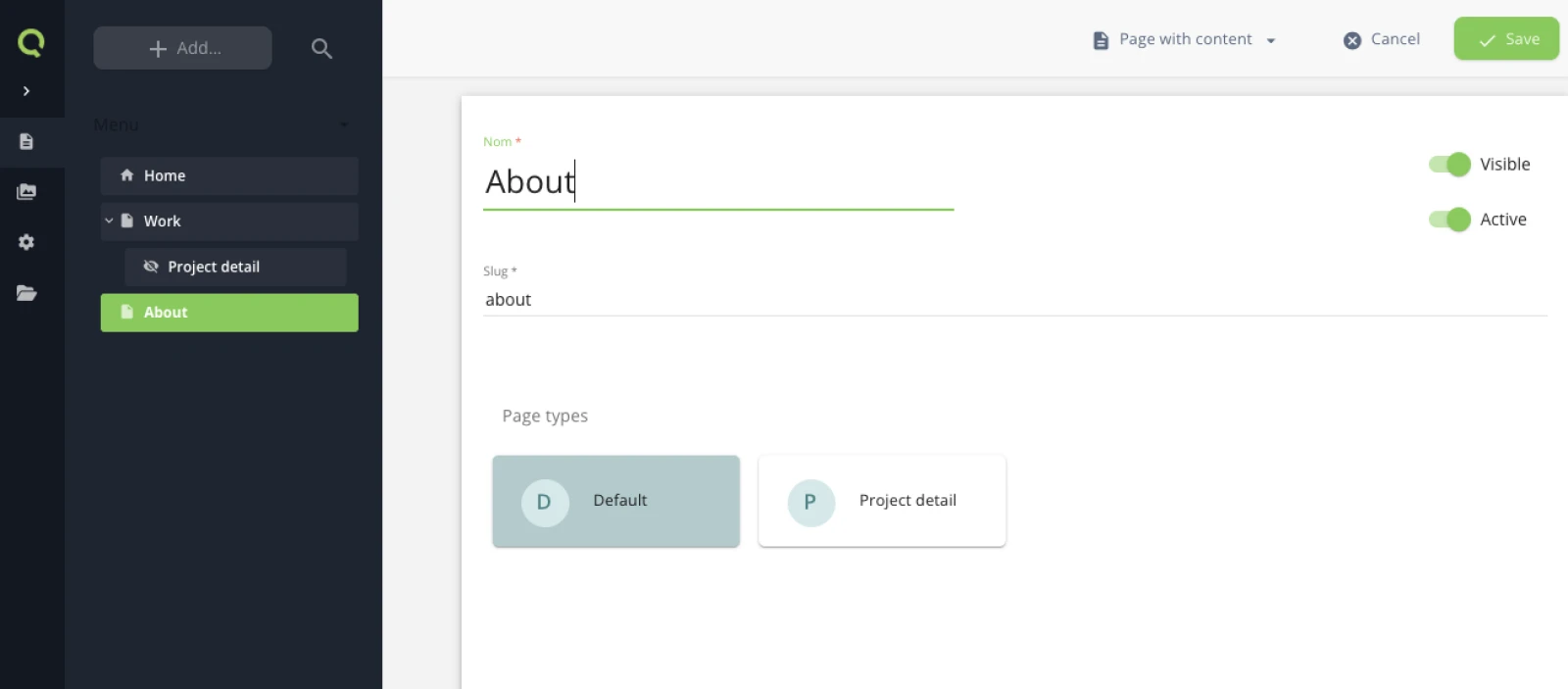
Same move, different content. Create a page with the slug about on the default page-type, then add an About block to it and fill it in: the studio's story, and the three capacities.
Two pages built the same way is what makes the model click: you are not writing pages, you are assembling blocks on a page-type.
4. Wire the navigation
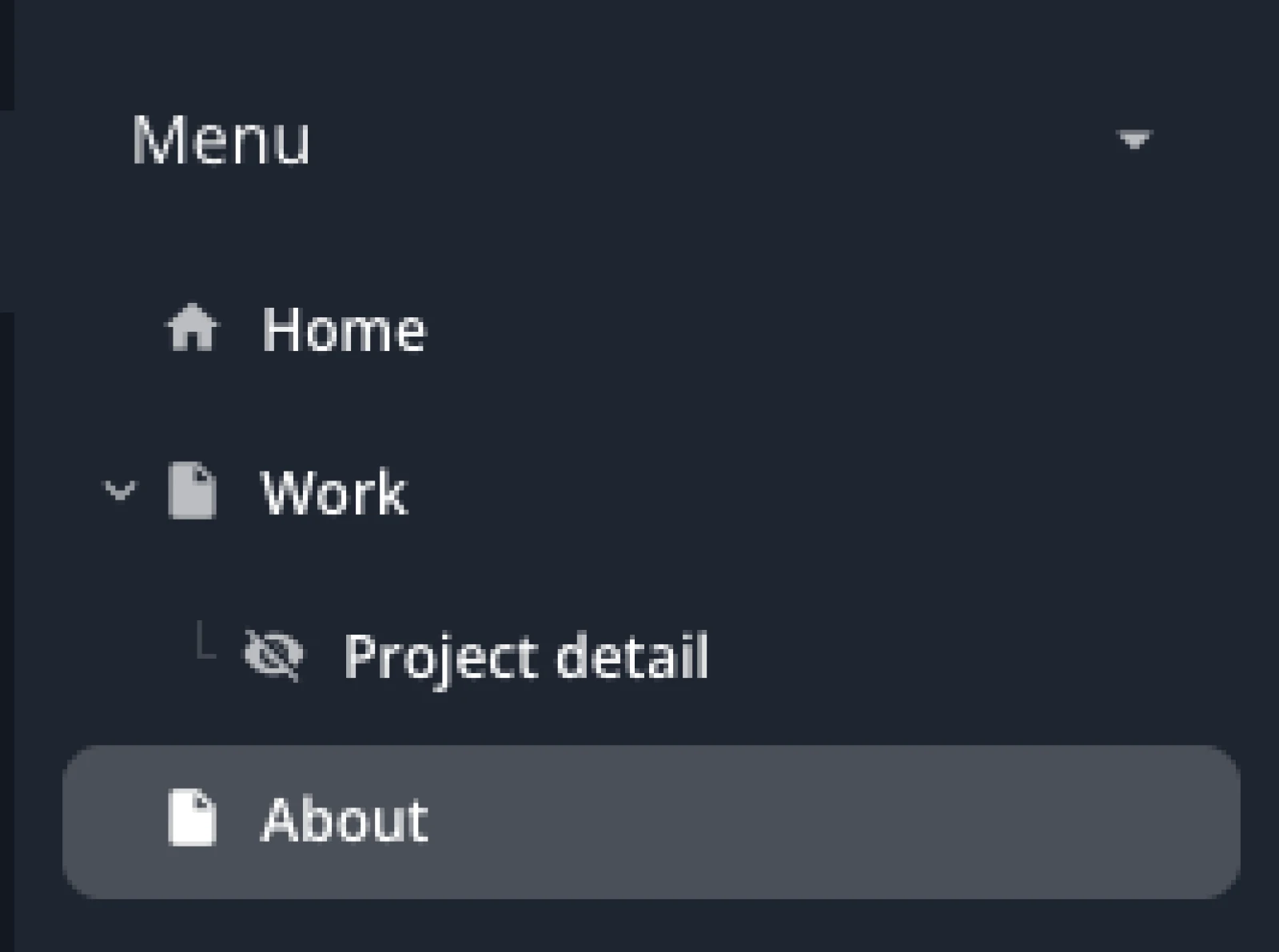
Add both pages to the main navigation. Then make the menu read it.
The quickstart template hardcodes its menu, because a onepager only ever had one page to point at:
<a href="#work"    class="nav-link label text-xs">Work</a>
<a href="#about"   class="nav-link label text-xs">About</a>
<a href="#contact" class="nav-link label text-xs">Contact</a>
Replace it with a loop over the navigation:
{% for item in sitemap.main.children %}
<a href="{{ item.url }}"
   class="nav-link label text-xs{% if item.active %} is-active{% endif %}"
   {% if item.active %}aria-current="page"{% endif %}>{{ item.navTitle }}</a>
{% endfor %}
sitemap.main is the main navigation. Each item gives you url, navTitle, and active for the page being viewed — which is how you get a highlighted menu item and a correct aria-current without tracking the current page yourself.
From here the menu is data. Add a page to the navigation and it appears; reorder it there and the menu reorders. Nothing in the template changes again.
Do the same for the mobile menu if your template has one — it is the same loop.
href="#contact" worked when every section was on the one page. From /about it points at a section that is not there. Prefix in-page anchors with the home page: /#contact. Same for the logo, which should go to / rather than #top.5. Understand draft versus published
Everything you have built so far exists, and none of it is online. Two things are worth separating:
- A page's state says whether the page is routable at all. An inactive page returns 404 everywhere, including on your machine.
- Publishing creates a live revision. Until you publish, visitors see the previous version, or nothing.
And one thing that is not symmetric: your projects are already live. Pages have drafts, collection entries do not, so every project you created in the previous tutorial went public the moment you saved it. Publish and go live shows how to stage entries when you need to.
6. Publish
Two ways, depending on how many pages you have to put online.
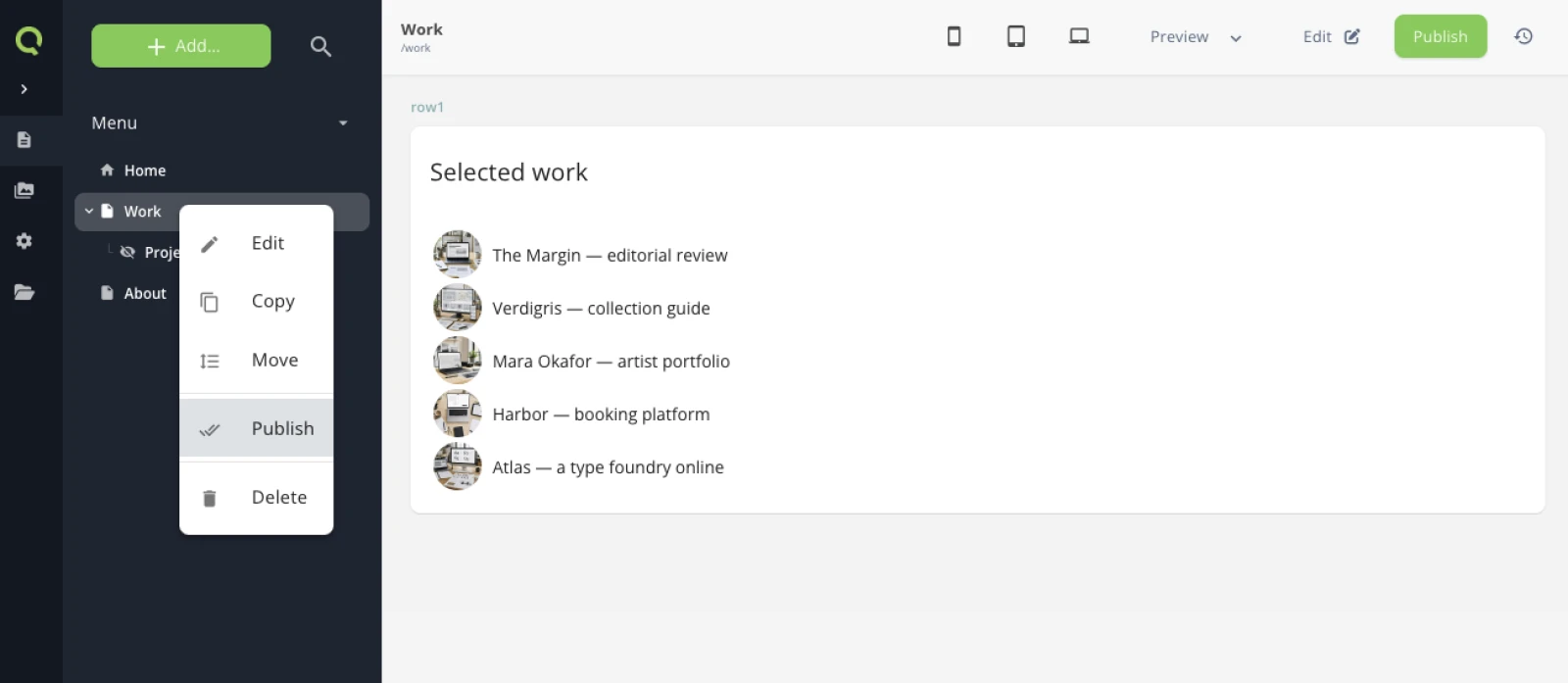
One page. Open it and use the green Publish button, top right. Or right-click the page in the menu and pick Publish — same thing, without leaving the tree.
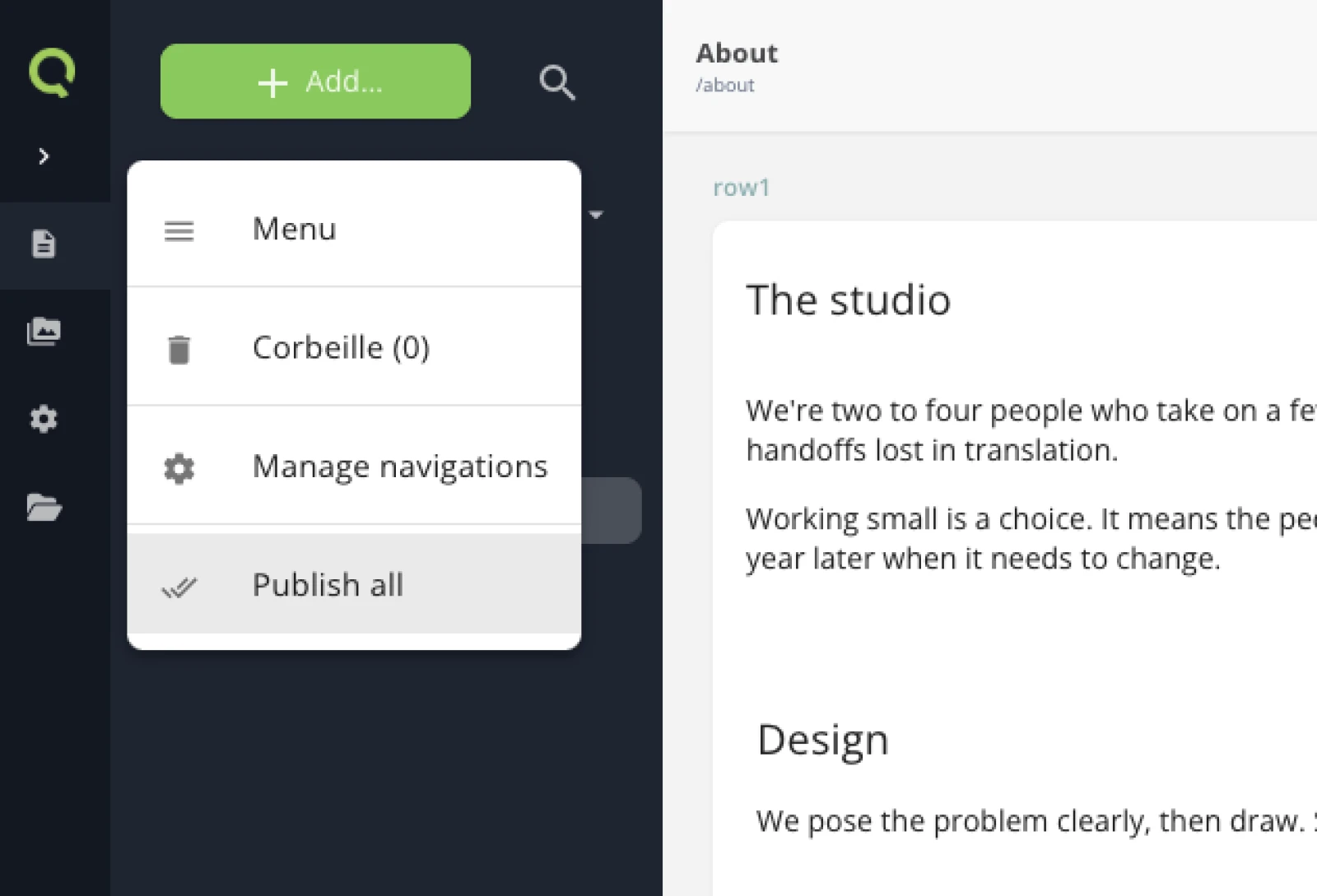
Everything at once. The menu's own dropdown carries Publish all — which is what you want here, since you have just built two pages and changed a third.
7. Push your templates
Publishing pushes content. Your templates still live on your machine, so send them too:
quilium push
Push validates the theme, warns you if your git tree is dirty, and updates the translation dictionary. See Quilium CLI.
What you learned
- A page is an instance of a page-type; blocks are what you compose on it.
- The same content-type can render on as many pages as you like, and
{{field.*}}lets each block be configured by its editor. - The navigation is data, not markup.
- Content publishing and template pushing are two different actions.
Where to go next
Last updated September 7, 2026.