
Turn the work list into a collection
Take the project list you already have on the quickstart onepager and promote it into a real collection, with a page per project.
You finished the Quickstart with a onepager running locally. Its work section lists eight projects, and they live in a repeat field: fine for a fixed list, useless the day you want a page per project, a filter, or a feed. In this tutorial you move them into a collection, without the page changing at all.
What you will have at the end
A project collection holding the eight projects, the home page rendering it through a query, a /work/view/<slug> URL for each project, and a detail page. The home page looks exactly as it does now.
1. Look at what you already have
Open elements/work.liquid and the work content-type. The projects are a repeat field: a list of groups (title, client, summary, image) stored inside one content block.
work:
  name: Work
  template: elements/work.liquid
  tabsets:
    main:
      name: Selected work
      fields:
        eyebrow:
          type: text
          label: Eyebrow
        title:
          type: text
          label: Title
        projects:
          type: repeat
          label: Projects
          info: One card per project. The first project is featured (coral rule).
          config:
            fields:
              title:
                type: text
                label: Project title
              client:
                type: text
                label: Client
              summary:
                type: textarea
                label: Summary (one line)
              image:
                type: image
                label: Visual
                config:
                  versions:
                    standard:
                      label: '4:3 — 1200x900'
                      width: 1200
                      height: 900
The template loops that field directly:
{% if c.projects and c.projects.size > 0 %}
<div class="mt-14 grid md:grid-cols-3 gap-6">
  {% for project in c.projects %}
  {% assign pImg = project.image[0].versions.standard.url %}
  ...
  {% endfor %}
</div>
{% endif %}
That is the thing to understand before changing it. A repeat field is content of a block. A collection is content of the site, addressable from anywhere.
2. Create the project collection
Declare a collection type with the same fields the repeat had, plus a slug, which is what gives each project an address.
project:
  name: Projects
  objectName: Project
  icon: folder-open
  sortable: true
  tabsets:
    main:
      name: Project
      fields:
        title:
          type: text
          label: Project title
          searchable: true
        slug:
          type: slug
          label: Slug
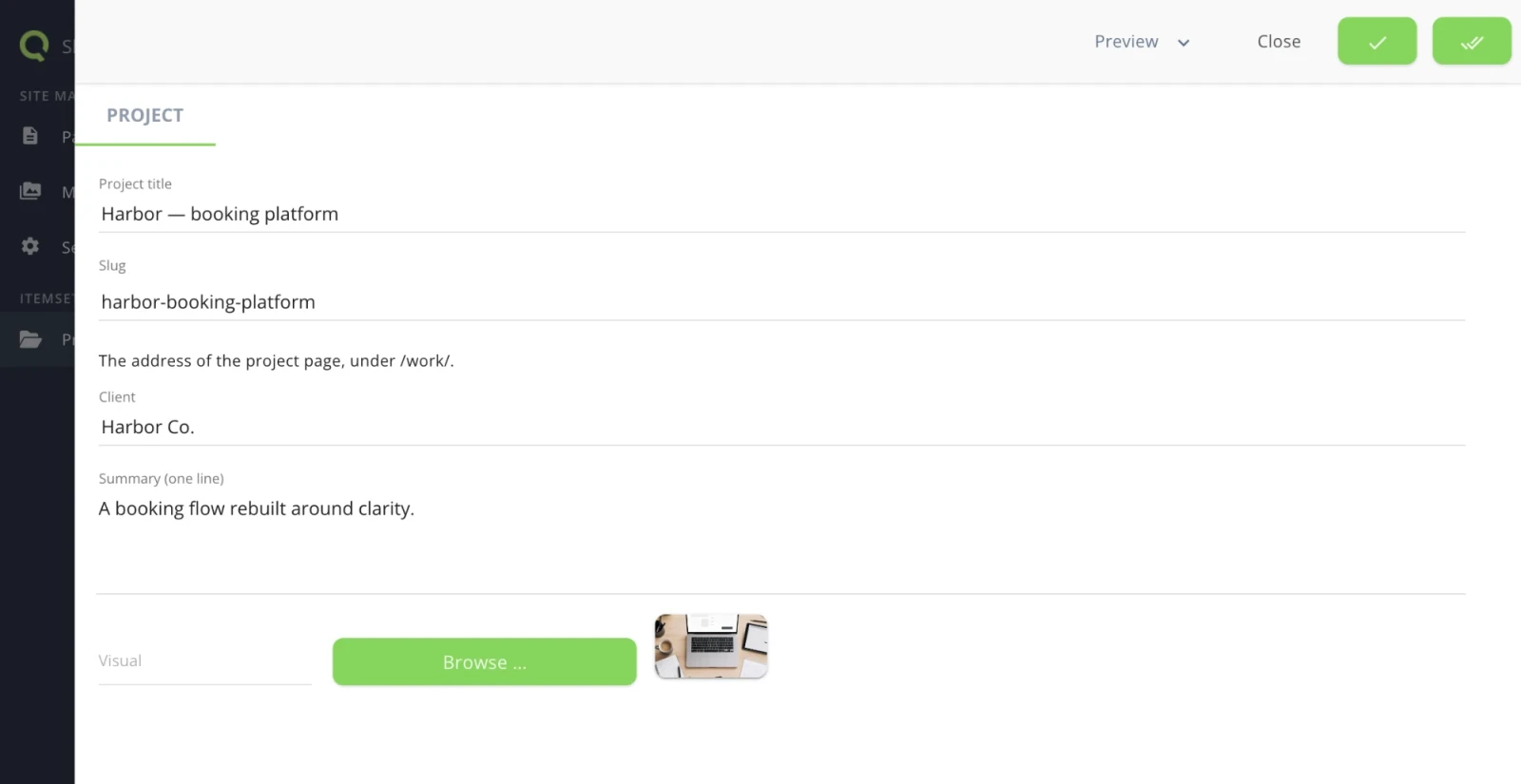
          info: The address of the project page, under /work/view/.
          config:
            linkedField: title
        client:
          type: text
          label: Client
          searchable: true
        summary:
          type: textarea
          label: Summary (one line)
        image:
          type: image
          label: Visual
          config:
            versions:
              standard:
                label: '4:3 — 1200x900'
                width: 1200
                height: 900
  displays:
    - type: datatable
      config:
        cols:
          - image
          - title
          - client
        order:
          column: _order
          sort: asc
Three things are new compared to the repeat field:
| Key | What it does |
|---|---|
slug |
The address of the item. config.linkedField: title fills it from the title, so "Harbor — booking platform" becomes harbor-booking-platform. |
sortable: true |
Turns on drag-and-drop ordering in the backoffice. The position is stored in the system _order field — do not model an order number field by hand. |
displays |
The backoffice table: which columns editors see, and the default sort. |
The key is singular — project, not projects — because the type describes one item. The plural lives in name: Projects, which is what editors read in the backoffice.
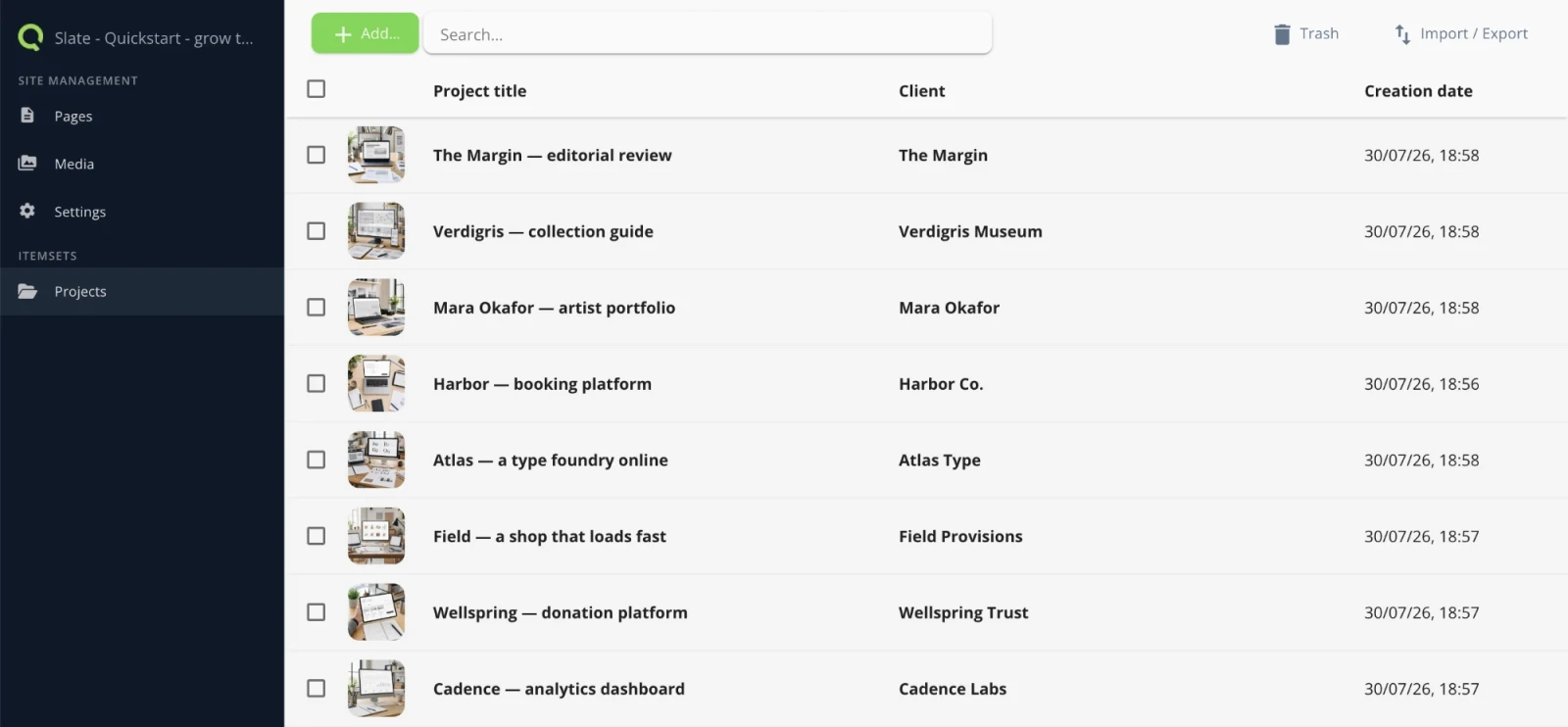
3. Move the eight projects in
Copy each project from the repeat field into an item of the collection. Eight items, same values, same order. The slug fills itself from the title as you type it.
4. Point the block at the collection
Replace the repeat field with a query: the collection to read, the sort, the limit.
projectList:
  type: query
  label: Projects
  info: Reads the Projects collection. The first project is featured (coral rule).
  config:
    itemSet: project
    limit: 8
    sort:
      - _order: asc
sort: - _order: asc is what makes the drag-and-drop order of step 2 the order on the site. The editor decides which project comes first, and therefore which one is featured, without touching a template.
_order is empty until someone reorders. Items created without ever being dragged have no position, and sorting on an empty position gives an arbitrary order that can change between renders. Open the Projects list and drag the items into the order you want once — that is what fills _order.The template change is two lines — the field the loop reads, and nothing else:
{% if c.projectList and c.projectList.size > 0 %}
  {% for project in c.projectList %}
Everything inside the loop is untouched. A collection item exposes the same flat field names the repeat groups did, so project.title, project.client, project.summary and project.image[0].versions.standard.url all keep working.
Note where the rules live: limit and sort are in the query, not in the template. They are configuration, so an editor can change them — whereas a {% if forloop.index <= 8 %} in Liquid would bury the same rule in code.
See Build a blog for the same move written as a reference procedure.
5. Check that nothing changed
Reload the local page. Same eight projects, same order, same featured first project.
On Slate the rendered HTML is byte-for-byte identical to the version served by the repeat field — only the per-site image URLs differ:
diff before.html after.html
This is the payoff of the tutorial: the page is identical, and yet the data now lives somewhere it can be reused. Nothing about the visitor's experience changed, everything about what you can build next did.
Now, and only now, delete the projects repeat field from the work content-type. Two sources for the same list is how they drift apart.
6. Give each project its own page
A collection with no detail page is a list. Three pieces turn items into pages.
A page-type that resolves the current project from the URL. The query filters the collection by the slug in the address:
projectDetail:
  name: Project detail
  template: projectDetail.liquid
  tabsets:
    config:
      name: Project
      fields:
        project:
          type: query
          label: Project
          info: Resolves the project from the URL. Do not edit.
          config:
            itemSet: project
            where:
              '&=':
                slug: '{{route.project.slug}}'
            limit: 1
  sections:
    row1:
route.project.slug reads the URL. It resolves only inside a query config, never in a template. The '&=' operator keeps the clause even when the slug is empty, so a missing slug returns zero rows instead of the whole collection.
A page to hang the route on. Two pages, because a URL is built from the page tree:
- a
Workpage with the slugwork, using thedefaultpage-type. It is the section your projects live under. Leave it empty for now — you fill it in the next tutorial. - under it, a child page of type
projectDetailwith the slugview, set not visible. It is not a nav entry, it is the mount point of the detail URLs.
/work/<slug>. It looks like the prettier URL, but two pages then resolve to /work and publishing refuses it with 422 UniqueUrl. Give the child a real segment — view — and the two stop competing.A route. Its path carries only the variable part of the URL. It is appended verbatim to the page URL, which is why it starts with /; the page tree supplies the /work/view prefix:
name: projectDetail
path: /{{project.slug}}
which Quilium computes as:
/work/view/{{project.slug}}
Do not repeat the prefix in the path: writing /work/view/{{project.slug}} there would produce /work/view/work/view/<slug>. The path is only what comes after the page.
In the detail template, limit: 1 means the query still returns a list, so take the first row:
{% assign p = page.custom.project[0] %}
And link the cards on the home page. The url filter takes a named argument carrying the whole item, never the slug:
<a href="{{ 'projectDetail' | url: project: project }}">{{ project.title }}</a>
which renders as:
/work/view/harbor-booking-platform
/work/view/cadence-analytics-dashboard
/work/view/field-a-shop-that-loads-fast
Because the link goes through the route, this is also what makes the URLs safe to change later: move the pages and every link follows, with no template edit.
Finally, give editors the way back. A collection with a detail route needs a preview button, or the backoffice list has no link to the live page:
preview:
  - label: View on the site
    route: projectDetail
    params:
      project.slug: '{{slug}}'
The params key mirrors the route token literally: the path uses {{project.slug}}, so the key is the flat string project.slug, never a nested map.
The entry lands under the Preview menu at the top of the item form, the one already visible in the screenshot at step 3. An editor opens the project page from there, without knowing the URL.
quilium push first — see Add pages and publish.The full procedure, with its pitfalls, is in Build a blog.
What you learned
- A repeat field belongs to one block; a collection belongs to the site.
- A query is how a block reads a collection — and it carries the sort and the caps, so an editor owns them.
- A route plus a detail page-type is what turns items into pages.
Next: Add pages and publish, where the onepager stops being one page.
Last updated September 7, 2026.