
Connect an agent over MCP
Give your own AI agent access to a Quilium site, with your account, your permissions, and no token to copy around.
Quilium runs a hosted MCP server at https://mcp.quilium.io/mcp. You connect it once, authorise it with your Quilium account, and your agent can then read and write every site you have access to, through the same typed operations the backoffice uses.
itineraires collection. Any site you can open in the backoffice works the same way.1. Add the server to your client
The server speaks streamable HTTP and authenticates over OAuth, so there is nothing to install and no token to paste.
The URL is the same everywhere:
https://mcp.quilium.io/mcp
Claude. Settings → Connectors → Add custom connector, then paste the URL. The browser opens the Quilium consent screen; approve it and the connector turns active. This covers claude.ai, Claude Desktop and Claude for Work at once — see Anthropic's guide to custom connectors.
Claude Code. The same connector works, and there is also a one-line install. Add it, then run /mcp to authorise:
claude mcp add --transport http quilium https://mcp.quilium.io/mcp
ChatGPT. Turn developer mode on, under Settings → Apps and connectors, then create a connector with the URL — see OpenAI's guide to MCP in ChatGPT.
Other clients (Cursor, VS Code, Codex, …). Add the server to the client's MCP configuration:
{
    "mcpServers": {
        "quilium": {
            "type": "http",
            "url": "https://mcp.quilium.io/mcp"
        }
    }
}
Your site's dashboard carries these same paths behind Connect your AI assistant, with the URL ready to copy.
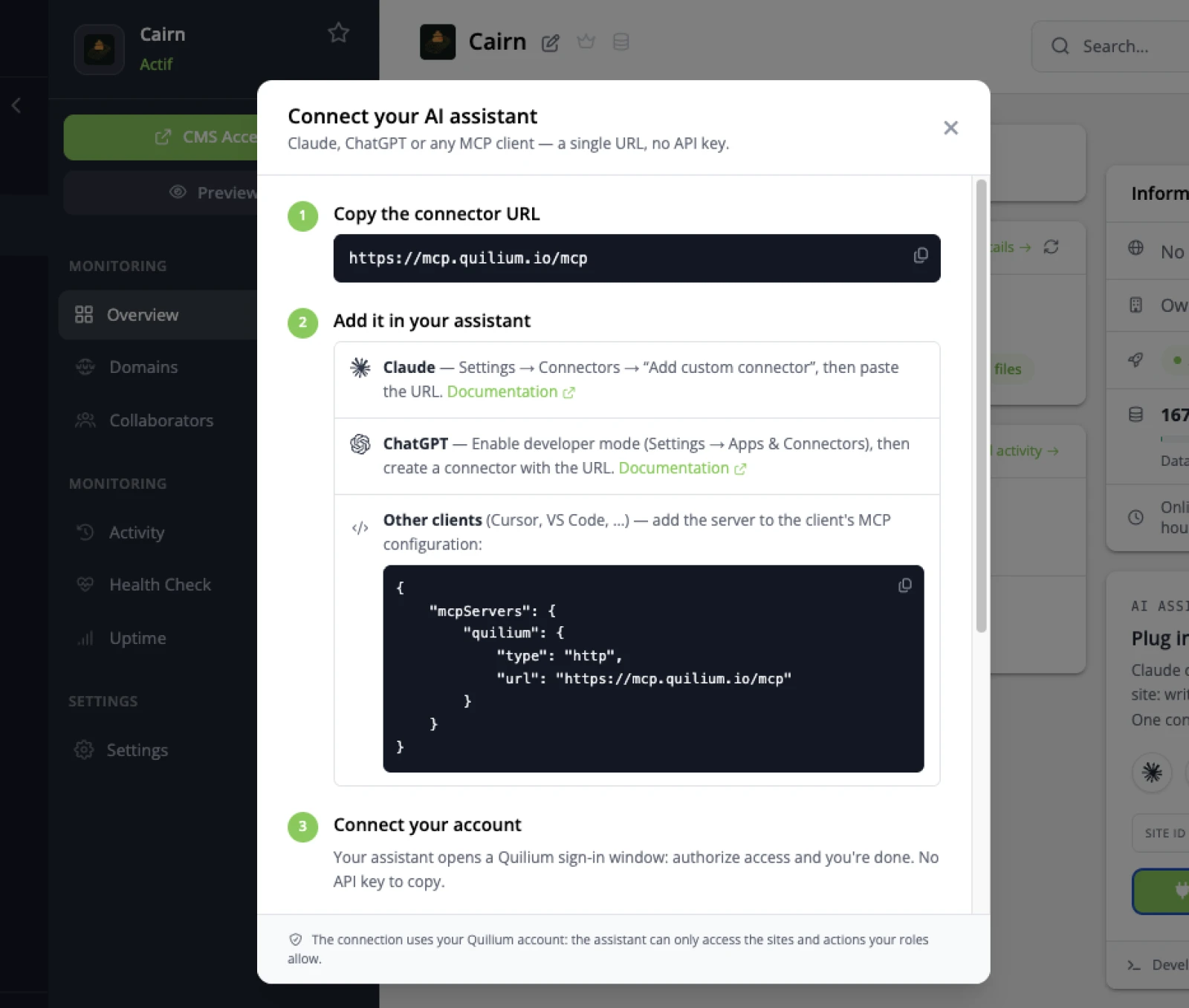
2. Authorise with your Quilium account
Authorisation is an OAuth flow against your Quilium account, not an API key. That has two consequences worth knowing:
- The agent inherits your access. It sees the sites your account can open, nothing else. There is no separate service identity to provision or revoke.
- The session refreshes on its own. You authorise once; you do not re-paste a credential every morning. To revoke it, open the connected applications of your Quilium account: the connection stops within 15 minutes, for every agent connected through this server.
3. Bind the connection to one site (recommended)
By default, one connection serves all your sites: the tool list is the union of everything you might do somewhere, and each individual call is authorised against the site it targets. That is convenient when you juggle several projects, and confusing when you do not.
Append ?website=<uuid> to bind the connection to a single site:
https://mcp.quilium.io/mcp?website=<site-id>
Bound this way, the server resolves your profile on that one site and lists only the tools you may actually call there. It also uses that site as the fallback when a call omits its website argument, which is what makes get-skills return a skill list filtered for your profile.
quilium-cairn, quilium-lisiere). An agent that can only see one site cannot write into the wrong one.The id is on the site's Overview page, in the same AI assistant card that opens the dialog above — a Site ID field, next to the connect button. Failing that, an agent already connected can call get-me with no argument and list every site your account reaches, ids included.
4. Know what your profile allows
The server enforces permissions per call, per site, from the profile your account holds on that site. Advertising a tool is not the same as authorising it.
| Profile | What it can do |
|---|---|
owner, admin, webdesigner |
Everything: content, media, collections, translations, plus site structure (YAML settings, routes, navigations). |
webmaster, editor |
Everything content-side. Structure is off limits: update-setting, update-settings-partial, the four *-route tools and the three *-navigation tools are refused. |
A restricted profile that asks for a structural change gets a clean refusal, not a broken write. If you hold a full profile but want to work with the guardrails of a restricted one, declare it on the connection: append &mode=webmaster to the URL.
5. Verify the connection
Ask the agent for two calls before anything else. Together they prove the identity, the site binding and the permissions in one exchange:
Call get-me for this site, then get-site-settings with type: item-set-types.
Tell me which account I'm connected as, my profile on this site, and the collections you can see.
On Cairn, a bound connection answers with your account, the profile you hold there, and the site's collections, itineraires among them. If the profile is not the one you expected, you are on the wrong connector or the wrong site.
6. Then load the skills
A connected agent is not yet a competent one. Everything that makes it write correct YAML on the first try, the skills library, is loaded on demand and needs to be asked for. That is the subject of Prompting well for Quilium, and the one habit worth taking from it:
Before any CMS operation, call get-skills, load every skill relevant to the task,
then call get-site-settings for this site.
Troubleshooting
| Symptom | Cause | Fix |
|---|---|---|
| The client lists no Quilium tools | The OAuth flow was never completed, or it was cancelled | Re-run the authorisation (/mcp in Claude Code, the connector panel elsewhere) |
| Structural tools are missing from the list | Connection bound with ?website= to a site where you hold a restricted profile |
Expected. Use an account with a full profile on that site, or work content-side |
| A tool call is refused although the tool is listed | Unbound connection: the list is the union of all your sites, authority is per call | Bind the connection with ?website=, so the list matches what you can do |
| Writes land on the wrong site | Several sites reachable, no binding, and the call omitted website |
One connector per site |
get-skills returns an unfiltered list |
No site bound and none passed to the call | Bind the connection, or pass website on the call |
Related
Last updated October 2, 2026.