
Connect your agent and get the material
Start the AI path: an empty site, an agent connected to it, and the prototype you are going to turn into a real Quilium site.
This is the first of eleven tutorials in which an agent builds a complete site with you, one page of the site at a time. By the end of this one nothing is built yet, and that is deliberate: you have an empty site, an agent that can prove it sees that site, and the design material on your disk.
What you will have at the end
An empty Quilium site, a local project, an agent connected over MCP with the Quilium skills installed, and the prototype running in a browser next to it.
1. Get set up
You need an agent that can run commands and read files in a folder. This tutorial was written with Claude Code on Opus 5; Codex, Cursor and the others work the same way. What the tutorial gives you is the prompts and the result to expect — not a dependency on one tool.
Then get the starting material and the CLI. The prototype and the brand material live in a public repository: seven HTML pages, the shared assets, the brand guidelines and the component catalogue.
git clone https://github.com/quiliumio/lisiere-ai-path.git
cd lisiere-ai-path
npm i -g quilium   # install or update
quilium login
quilium login opens your browser, you approve, and the CLI keeps itself signed in from there. If you already did the Quickstart you are logged in — run it anyway, it is idempotent, and npm i -g updates a CLI you installed weeks ago.
Here is what you just cloned:
lisiere-ai-path/
├── proto/                  7 pages, the whole site as flat HTML
│   ├── index.html          home: featured piece, then the feed
│   ├── article.html        an article, with its contributor
│   ├── section.html        one section's index
│   ├── the-review.html     editorial line and workshop
│   ├── contributors.html   who writes it
│   ├── newsletter.html     the subscription form
│   ├── thank-you.html      where the form lands
│   └── assets/             site.css, site.js, the Tailwind config, 11 images
├── branding/
│   ├── brand-guidelines.html   voice, colours, type, the logo
│   └── design-system.html      every component, catalogued
├── package.json            one script, to serve the prototype
└── README.md
Two folders, and no framework in sight. That is the whole starting material: a designer's deliverable, which is what you would actually be handed.
2. Look at the prototype
Serve the folder and open it:
npm run proto
That is a one-line static server on port 9055, so http://localhost:9055/proto/ is the prototype and http://localhost:9055/branding/ is the brand material. Serve the project root rather than proto/, or the branding pages lose the images they share with the prototype.
Read one page properly. You should recognise the shape of the site: a home that leads with a featured piece and a feed, article pages, a contributors page, a subscription form. That structure is what the next tutorial turns into a model.
3. Connect your agent to Quilium
Quilium runs a hosted MCP server. You add its URL once, authorise it with your Quilium account, and the agent can then work on every site you have access to.
https://mcp.quilium.io/mcp
In Claude, open the connector settings and add a custom connector with that URL. This is the path that works everywhere — claude.ai, Claude Desktop, Claude Code and Claude for Work. Claude Code also accepts a one-line install, which is convenient but only works there:
claude mcp add --transport http quilium https://mcp.quilium.io/mcp
Authorising happens in the browser: your agent opens a Quilium sign-in window, you approve, and the connection is live. The agent inherits your access — the sites your account can open, nothing more.
4. Install the Quilium skills
npx skills add quiliumio/quilium-skills -y
Run it from the project root. Two skills come down, and you want both: quilium-builder for the structure and the templates, quilium-webmaster for the content work that follows. The -y installs to every agent already on your machine, and spares you a selection screen where nothing is ticked the first time round.
◇  Installed 2 skills ────────────────────────────────────────────────╮
│                                                                     │
│  ✓ lisiere-ai-path/.agents/skills/quilium-builder                   │
│    universal: Codex, Cursor, Amp, Antigravity +12 more              │
│    symlinked: Claude Code                                           │
│  ✓ lisiere-ai-path/.agents/skills/quilium-webmaster                 │
│    universal: Codex, Cursor, Amp, Antigravity +12 more              │
│    symlinked: Claude Code                                           │
│                                                                     │
├─────────────────────────────────────────────────────────────────────╯

└  Done!  Review skills before use; they run with full agent permissions.
The files land in .agents/skills/, which most agents read directly, and the installer symlinks them into the conventions of the ones that expect their own folder. Two things follow from that: the install is per project, so you run it again in the next one, and the skills are files you can read — open SKILL.md if you want to know what your agent has been told.
Restart your agent afterwards: skills are discovered at startup, so one installed mid-session does not load.
get-skills and get-skill are documentation: specifications, examples and best practices, maintained by Quilium, always current, and referenced from inside the installed ones. Installing the first does not replace loading the second.5. Create the site
Start your agent from inside the folder you cloned, and give it the first prompt of the build:
Create a Quilium website named "Lisiere with ai" and initialize it
into a "quilium" directory.
One sentence, and it covers both halves of the job: the site is created on your account over MCP, and the project is checked out on your disk by the CLI. Here is the run, as it happened:
⏺ get-me()
  ⎿ signed in — personal account, plus 2 organisations you own

⏺ Creating a site is real and billable, so I am not going to guess the
  owner. Personal account, or one of your two organisations?

> The organisation.

⏺ create-website(name: "Lisiere with ai", owner_type: "organisation",
                 organisation_id: "<org-id>")
  ⎿ id:             <site-id>
    engine:         liquid
    deployState:    deploying
    cliInit:        quilium init "<site-id>" --name "Lisiere with ai"
                                 --dir "lisiere-with-ai"
    onboarding_url: https://account.quilium.io/sites/<site-id>/onboarding

⏺ get-website(website: "<site-id>")
  ⎿ deployState: deploy_success

⏺ Bash(quilium init "<site-id>" --name "Lisiere with ai" --dir "quilium")
  ⎿ Setting up project in 'quilium'
      ✓ quilium/quilium.json created.
      ✓ Template successfully pulled. (6 files)

⏺ Done — site deployed and checked out into quilium/.
  Open the backoffice: https://account.quilium.io/sites/<site-id>/onboarding
Four things in there are worth naming.
The agent asked before creating. A site is a real, billable object, and create-website says so in its own description — a well-behaved agent stops on the one decision it cannot infer.
It waited for the deployment. A fresh site answers deploying and is not usable until it answers deploy_success; polling is part of the procedure, not politeness.
It handed you the backoffice link. That onboarding_url comes back in the creation response, so you never have to go looking for the new site in the dashboard.
And it overrode the directory. The cliInit command the API hands back ends in --dir "lisiere-with-ai", derived from the site name. You asked for quilium, so that is what it used — which is the layout every later tutorial assumes:
lisiere-ai-path/
├── proto/        the HTML prototype
├── branding/     brand guidelines and design system
└── quilium/      the site
Open the link the agent gave you and the site is there, active and deployed, its health check already green, with one line of activity: the site was created.
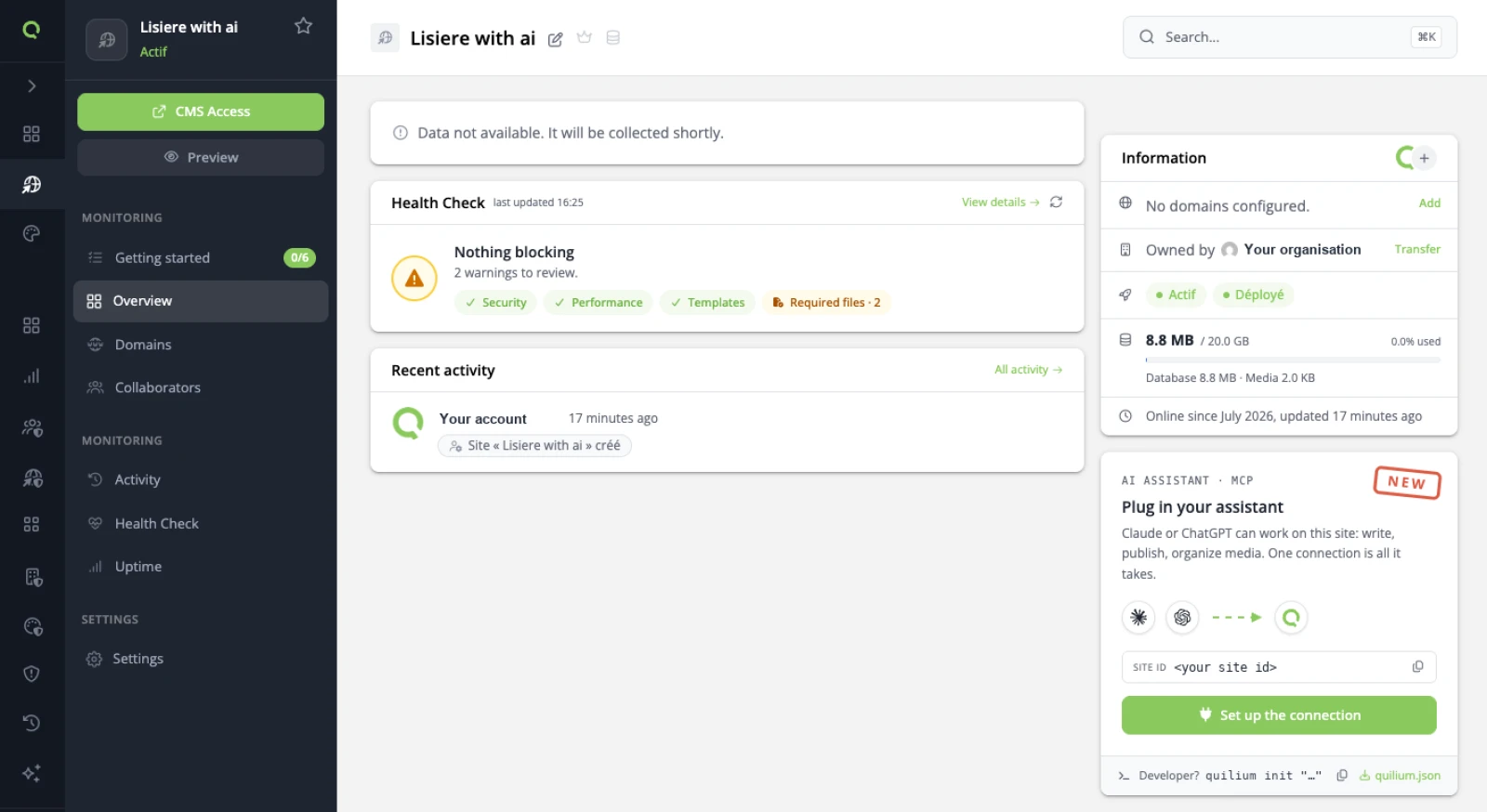
The right-hand column is worth a glance now, because it saves you a search later: the site ID, a Set up the connection button holding the MCP URL and the per-client instructions, and a Developer? line carrying the same quilium init command the agent just ran.
What an empty site actually contains
Six files, and a quilium.json that holds an ID and a name — no secret, nothing to keep out of a repository:
quilium/
├── quilium.json
├── layout.liquid       the page chrome
├── default.liquid      the only page-type
├── _contents.liquid    the block dispatcher
├── _sitemap.liquid
├── 404.html
└── public/robots.txt
Forty-seven lines of Liquid in total. Ask the agent what the site knows about itself and it is just as short: one page-type, default, with a row1 and a footer drop-zone; no content-types; no collections; one page, and it is called From Scratch !.
The whole extension mechanism is one of those lines:
{% for content in section %}{% if content.template %}{% include content.template %}{% endif %}{% endfor %}
A page holds blocks, each block names its own template, and _contents includes it. Adding a content-type means adding one file under elements/ — never editing this loop. Everything the next ten tutorials build hangs off that.
Run it
Give the site its own port, next to the prototype's. Add this to package.json:
"scripts": {
    "proto": "python3 -m http.server 9055",
    "quilium": "cd quilium && quilium run 9056"
}
npm run quilium
Starting Quilium. Use Ctrl+C to stop.

   Server running at http://localhost:9056
   Mode: draft
Two servers on two ports, for the rest of the tutorial: the prototype you are porting on 9055, the site you are building on 9056. Open the second one and you get a page — an almost empty one, but a real one, served by Quilium:
<title>From Scratch !</title>
<body>
    <div>
    </div>
</body>
No content-type exists yet, so the row1 drop-zone renders nothing and the loop in _contents has nothing to loop over. That empty <div> is the hole every following tutorial fills.
6. State the ground rules once
An agent with the files does better work than an agent with a description. Say where things are and what not to do:
We are building the Quilium site in quilium/ from the material in this repo.

Where things are:
- proto/ is the HTML prototype. It is the visual reference of record.
- branding/ holds the brand guidelines and the design system.
- quilium/ is the site project. Write only in there.

How to work:
- Before any CMS operation, call get-skills, load every skill relevant to
  the task, then get-site-settings for this site.
- Match the prototype's markup and its class names. Do not invent a
  section, a component or a piece of copy that is not in it.
- This site is English: field keys, labels, slugs, filenames and helper
  text, all of it.
- Explain a structural choice before you make it — a collection, a route,
  a page-type. I would rather discuss the model than undo it.
- Never publish. I decide what goes live.
Five of those six lines exist because the opposite happened at least once while this tutorial was being written.
AGENTS.md, CLAUDE.md — so this belongs at the root of the repository rather than in a message you retype. The site itself gets its own version later, in the site's AI instructions, which every future session inherits whether or not it has your files.Why each of those lines matters is covered in Prompting well for Quilium.
What you have now
An empty site, checked out next to the material it will be built from, an agent that can prove which site it is on, and the skills installed.
Next: The architecture pass, where the decisions get made.
Last updated September 7, 2026.