A new interface, with an AI assistant at your side
A fully rebuilt interface you switch on when you are ready: universal search, a redesigned page editor, more flexible collections, all your translations in one place, and an AI assistant that knows your screen.
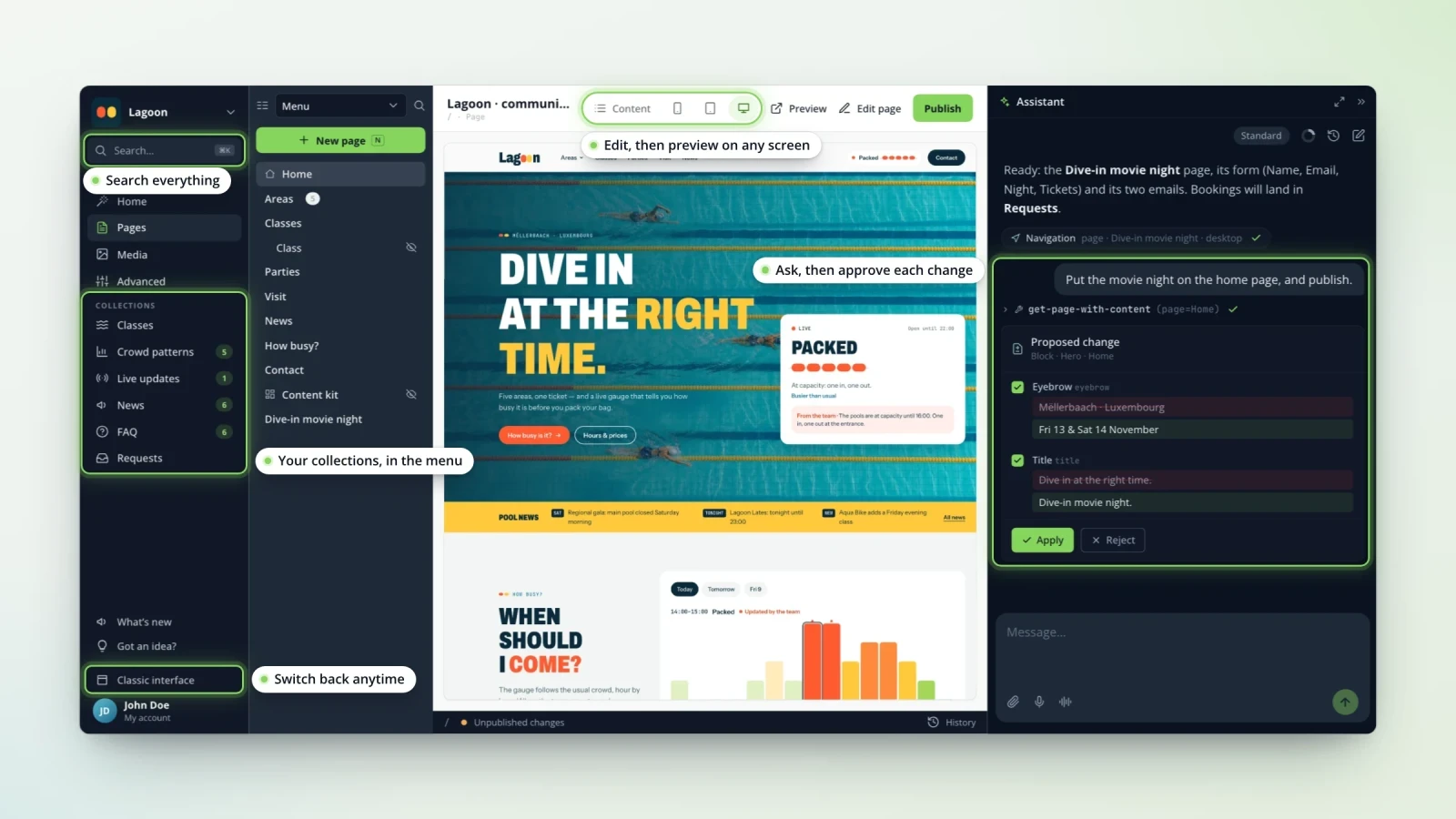
Your site administration has been rebuilt from the ground up. Everything you know is still there, faster and easier to read, and a lot of new things come with it.
At your own pace. The classic interface stays the default. To try the new one, click « New interface » at the bottom of the left menu; your choice is remembered. The « Classic interface » link takes you back at any time: both live side by side throughout the transition period.
An AI assistant at your side. It lives in a panel on the right and knows the screen you have open. Ask it to go somewhere, it takes you there. Ask it for a change, it suggests one with a comparison, and you approve it or not. Each of its actions is recorded in the site's activity log. The assistant is part of Quilium AI: if it is not enabled for you yet, the interface tells you who to ask.
And all around it:
- a universal ⌘K search that finds a page, an object, a media file or a setting from a few letters;
- two display modes, Simple for the essentials and Advanced for technical profiles;
- a redesigned page editor and collections that adapt to the way you work;
- tags to organise your collections;
- a Translations screen that gathers everything left to translate;
- a rebuilt media library and settings grouped by role.
Your feedback helps us finish it: the « Got an idea? » button is there for that.

An AI assistant that knows your screen
It lives in a panel on the right, takes you where you ask and suggests changes you approve after comparing them. Every action is recorded in the activity log. General instructions give it your site's tone; with Quilium AI, you also write procedures for it, the steps to follow for your recurring tasks. The assistant is part of Quilium AI: if it is not enabled for you yet, the interface tells you who to ask.

Find anything in a few letters
The universal search (⌘K) finds a page down to its content, a collection object, a media file, a settings screen, and even your other sites. As soon as it opens, it suggests what you viewed recently. The compact side rail gives access to the site, its previews and your account, and the interface comes in French, English or German depending on your account language.
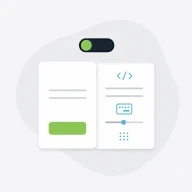
Simple or advanced, your choice
The interface starts in Simple mode: the essentials, without technical details. Advanced mode, switched on from your account menu (« Interface »), also shows what technical profiles need, depending on your role: column customisation and saved views, data import, keyboard shortcut hints, HTML and JSON code, YAML inspection, the forms log and the cache. The mode never changes your rights: it only shows more or less. Your browser remembers the choice for all your sites.

A redesigned page editor
Blocks are reordered by drag and drop, even across sections, and created with the small green « + ». Each block shows a rich preview. Translation happens inside the editor, block by block, and the site preview reloads on its own as soon as your changes are ready. The page history lets you go back to a previous version, and publishing is protected against double submissions and address conflicts.

Collections that fit the way you work
- Switch views in one click: table, kanban, calendar or thumbnails, depending on the collection; some views also show on the home screen.
- Change a status directly in the list, or edit several objects at once with a right click.
- Reorder by drag and drop, export, and find what you deleted in the trash.
- In Advanced mode, pick your columns and filters, then save them as a new view.
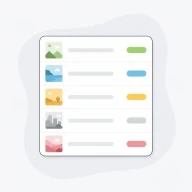
Lists that are easier to read
The options of a drop-down list can carry a colour: an object's status stands out at a glance, in lists as well as on the columns of the kanban board. Images and files show as thumbnails, block previews show their visuals, and the display density adjusts to your needs.
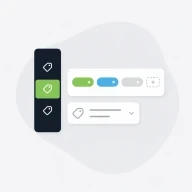
Tags to organise your collections
Your collections can now carry a Tags field. Type a few letters: pick an existing tag or create one on the fly. The « Manage » window renames or deletes a tag everywhere at once, and each tag becomes a filter in the left panel of the list. Two more fields come along: an icon picker to choose a pictogram without knowing its name, and text fields in email, web address or phone format, checked as you type. Your web designer adds them to your site's structure.
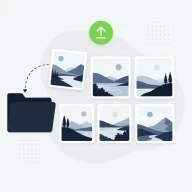
A rebuilt media library
Three thumbnail sizes, upload and move by drag and drop, folders, trash and bulk actions. A media file's detail view gathers its metadata, translations, usages and a built-in preview, PDF included. In forms, images and files appear as small thumbnails with a menu to view full size, replace or download.
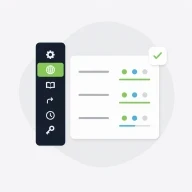
All your translations in one place
The Translations screen gathers your theme's texts and your tags. One card per language shows how far along you are; the « To translate » filter and the search, in the source text as in the translations, take you straight to what is missing. Your entries stay as drafts until you save them, all at once, and the history keeps track of every change. « Translate with AI » suggests the missing translations: you review them before saving. The home screen tells you what is left to translate.
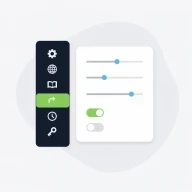
Settings grouped by role
General, translations, redirects, custom fields, export and backup, AI instructions: everything lives in one place, depending on your role. From General, administrators put the site in maintenance with one click, with a message for visitors, or open the draft without sign-in for a review. The activity log tells who did what, by hand, through the assistant or through a connected agent. Web designers get an IDE-style YAML editor for the site's structure.

Several people on the same site
When a colleague or the assistant edits the site, your screens refresh on their own, with a discreet mention. If two people touch the same element, you are warned before overwriting their work.